



Mobile Phone - Configuring MFA
Before you start
- Do not install app and sign in, must follow step by step instructions. Skipping steps can cause setup problems.
- Watch for stop signs and switch between your phone screen and authenticator app tabs as directed.
- On new devices must register Microsoft Authenticator app again, requires old device or must contact service desk for assistance.
Please note
To install the Microsoft Authenticator App, your device must meet the following requirements:
- Android: Version 8.0 or higher
- iPhone/iPad: iOS 17 or higher
Step-by-Step Instructions to Set Up MFA on the Microsoft Authenticator App from Your Mobile Phone
Step 1
On your mobile device:
Sign in to My Sign In | Security Info with your VSB email and password.
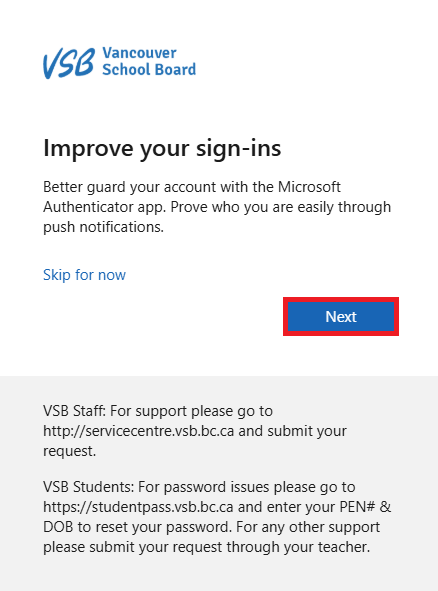
You will be brought to a screen that states “Improve your sign-ins". Click Next.
Step 2
On your mobile device:
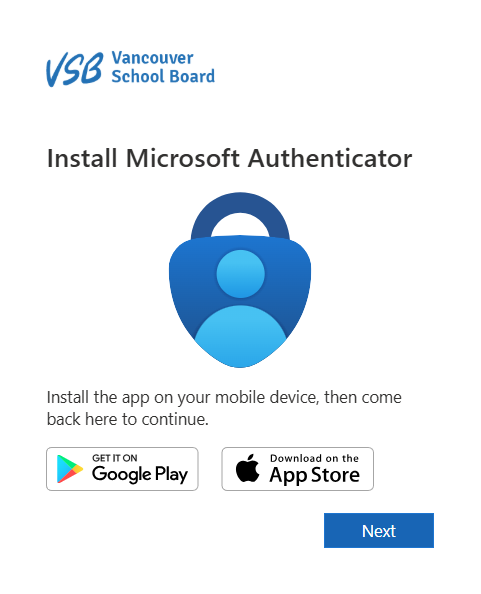
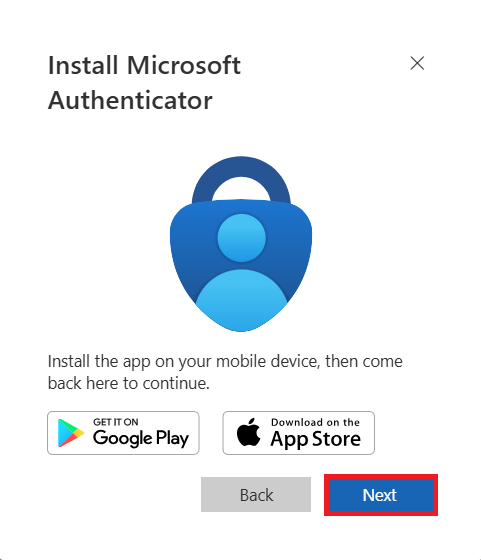
The next screen on your mobile device tells you to install the Microsoft Authenticator app from the Apple App Store or the Google Play Store, depending on your mobile device type.

Proceed with caution and DO NOT select ‘Next’ until you have downloaded the Microsoft Authenticator App as doing so will cause errors in the setup process.
Step 3
On your mobile device:
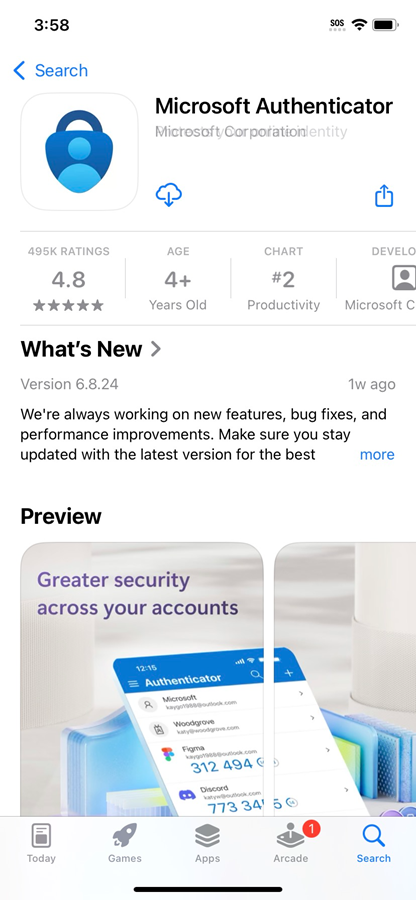
Install the Microsoft Authenticator app from the Apple App Store or the Google Play Store, depending on your mobile device type.
Step 4
On your mobile device:
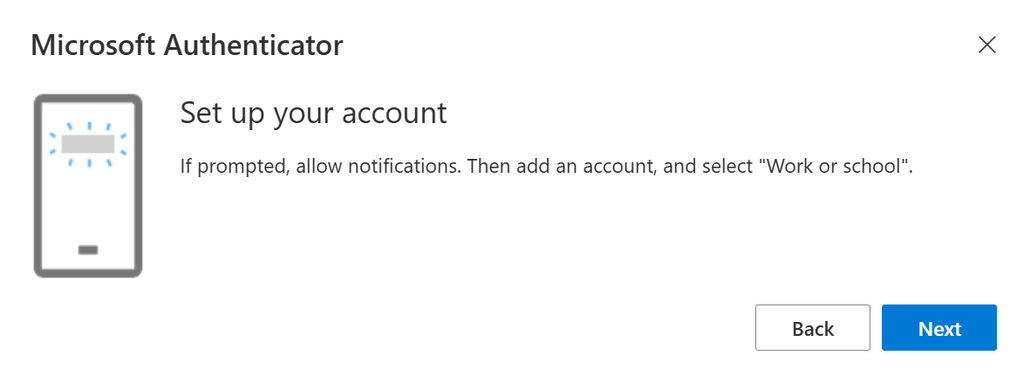
If prompted, select Allow notifications.
Step 5
On your Microsoft Authenticator App:
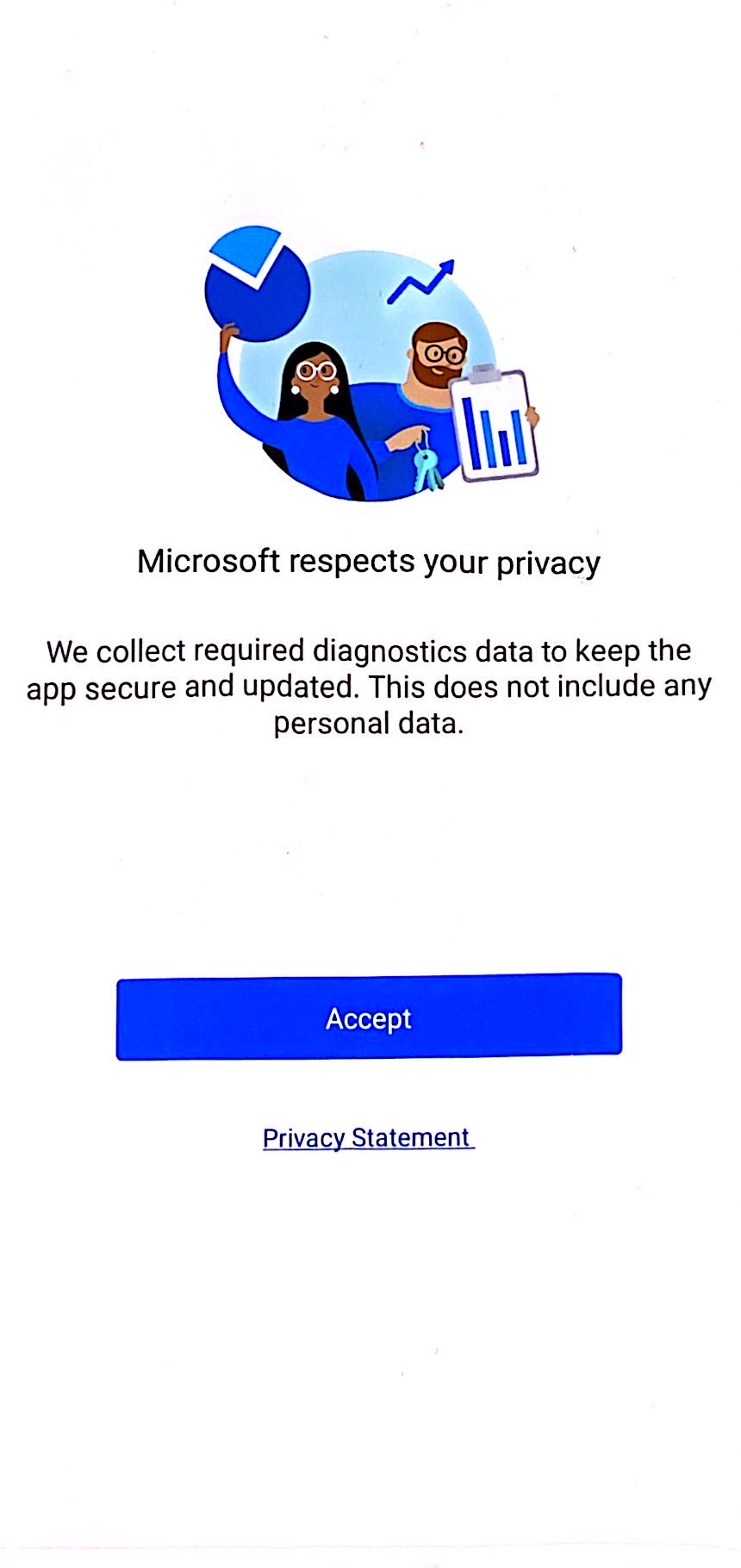
Click through the following screens on your Microsoft Authenticator App.
- Select "Accept”
- On your Microsoft Authenticator App:
- Select ‘Continue’. You do not have to check the box.
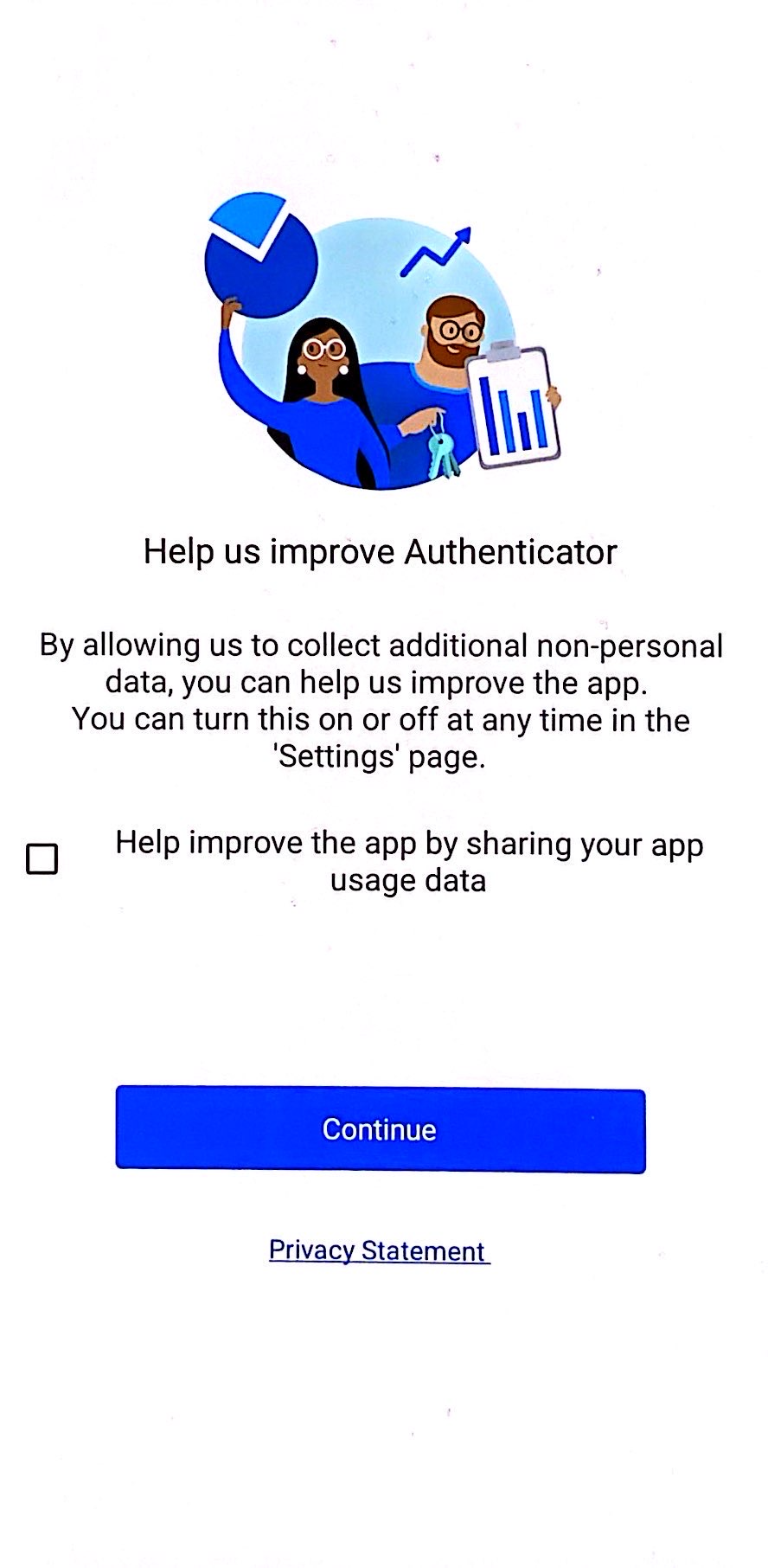
Stop and Go to Step 6.
Step 6
On your mobile device:
After installing the Microsoft Authenticator App on your phone and completing Steps 3–5, return to this screen on your mobile device and tap Next.
Step 7
On your mobile device:
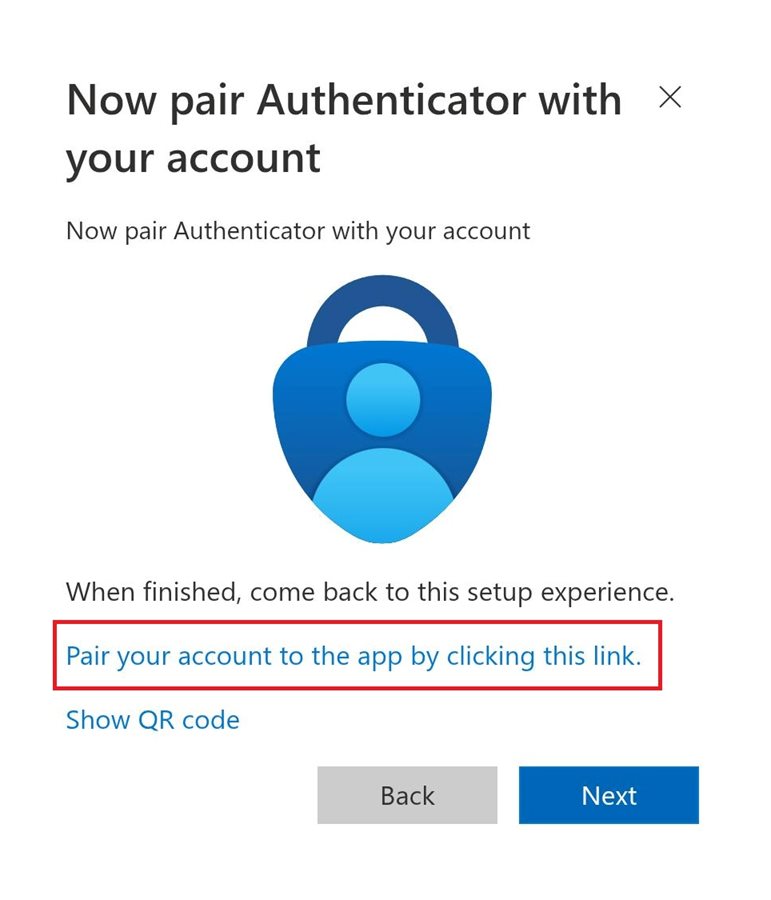
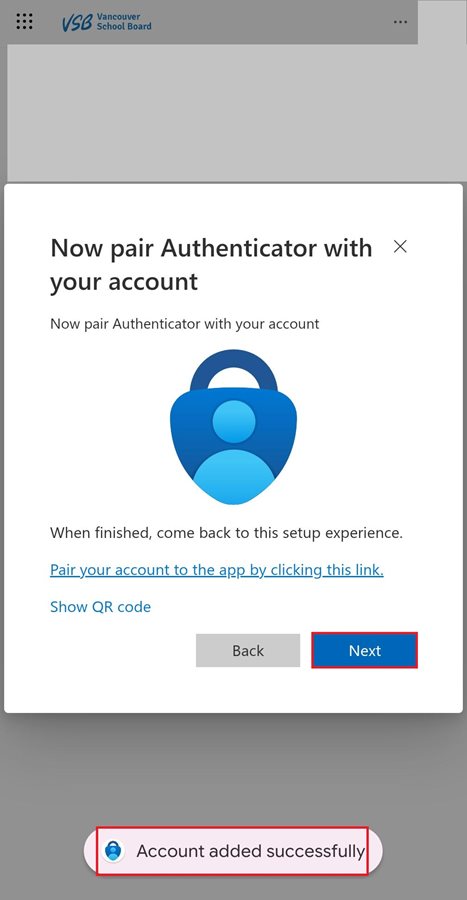
To pair the Microsoft Authenticator App with your account, tap the link that says, "Pair your account to the app by clicking this link" on your mobile device.
DO NOT Click Next at this step.
Step 8
On your mobile device:
It will open up the Microsoft Authenticator App and pair up your account. You will see a message saying, "Account Added Successfully".
Click Next.
Step 9
On your mobile device:
Microsoft will ask you to try out the authentication process. Make note of the numerical code you see on the screen on your mobile device.
Tap Approve Sign-In? to open the Microsoft Authenticator App.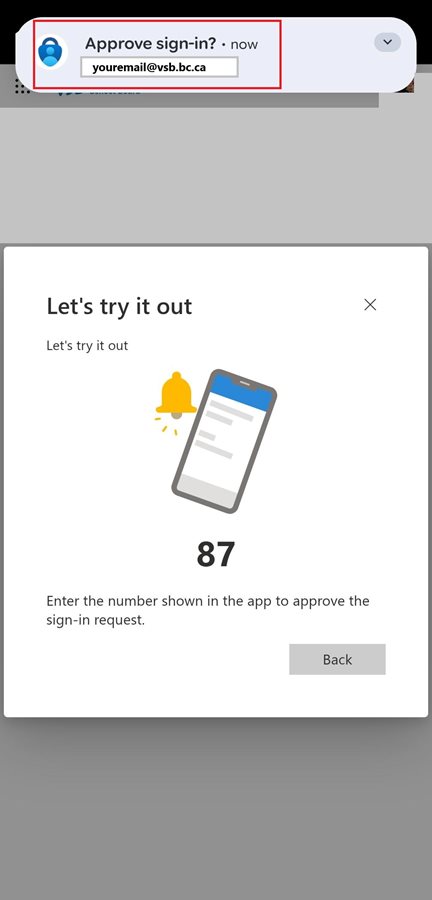
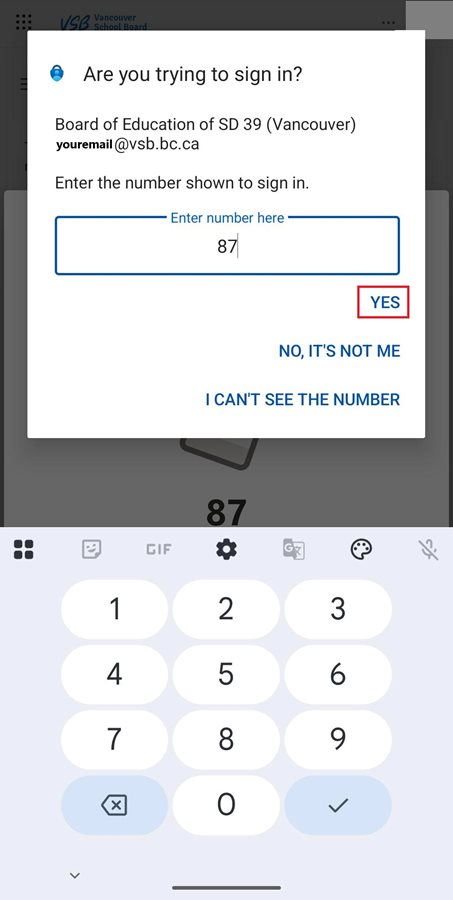
On your Microsoft Authenticator App:
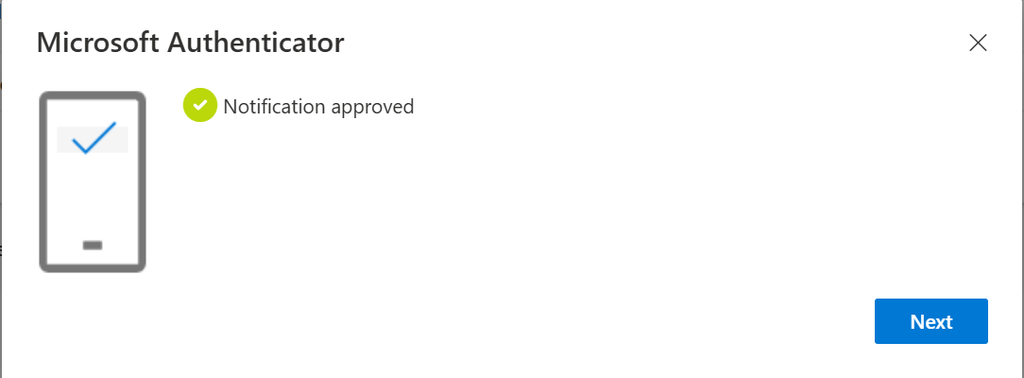
The Microsoft Authenticator App will be launched. Enter the numerical code displayed in your web browser and tap Yes in the Microsoft Authenticator app.
Step 10
On your mobile device:
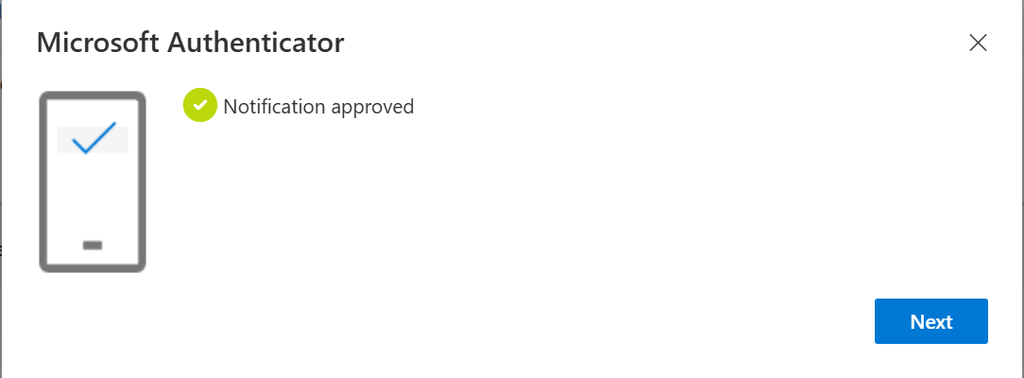
Success! You will see a message saying ‘Authenticator Added’ on your mobile device. Click ‘Done’.
Step 11
On your Microsoft Authenticator App:
In the Microsoft Authenticator App confirm that your work account is set up.
IMPORTANT: Step 12
Final step.
On your mobile device:
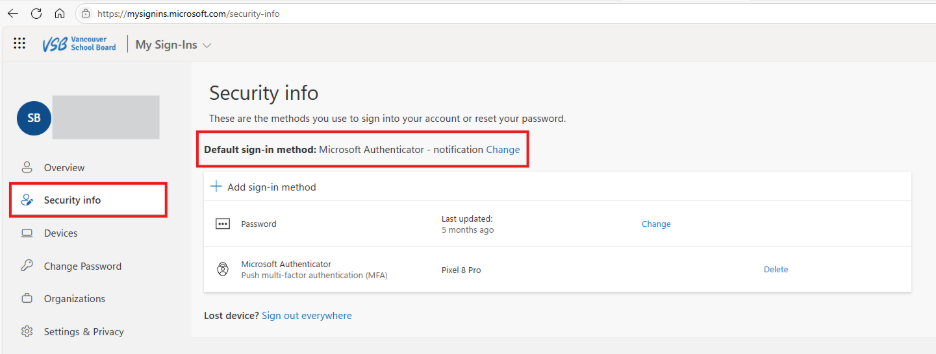
On the My Sign In | Security Info page, please verify that the Microsoft Authenticator app is set as your default sign in method.
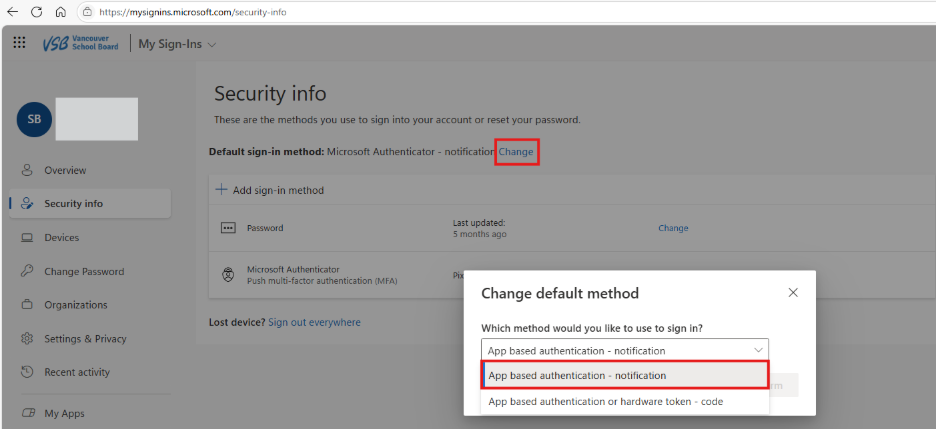
On your mobile device:
If it's not your default sign-in method, click 'Change' and choose 'App based authentication – notification' from the dropdown.
NOTE: On your first day using the new system, you'll see quite a few pop-ups as everything syncs up. Once that's done, you'll only get pop-ups now and then to authenticate.
Need help?
For any questions related to multi-factor authentication, please call the VSB Service Desk at +1-604-713-4444 or email at servicedesk@vsb.bc.ca.