



iOS - Configuring MFA
Important Step: For VSB MacBook users
Please ensure to register your VSB MacBook as a Compliance Device. This enables Microsoft to verify your device is secure and lets you access VSB services with fewer MFA prompts.
Before you start
- Follow each step carefully.
- Watch for stop signs and switch between your computer and phone as directed.
- Skipping steps can cause setup problems.
Step-by-Step Instructions to Set Up MFA using the Microsoft Authenticator app on Your iOS Device
Step 1
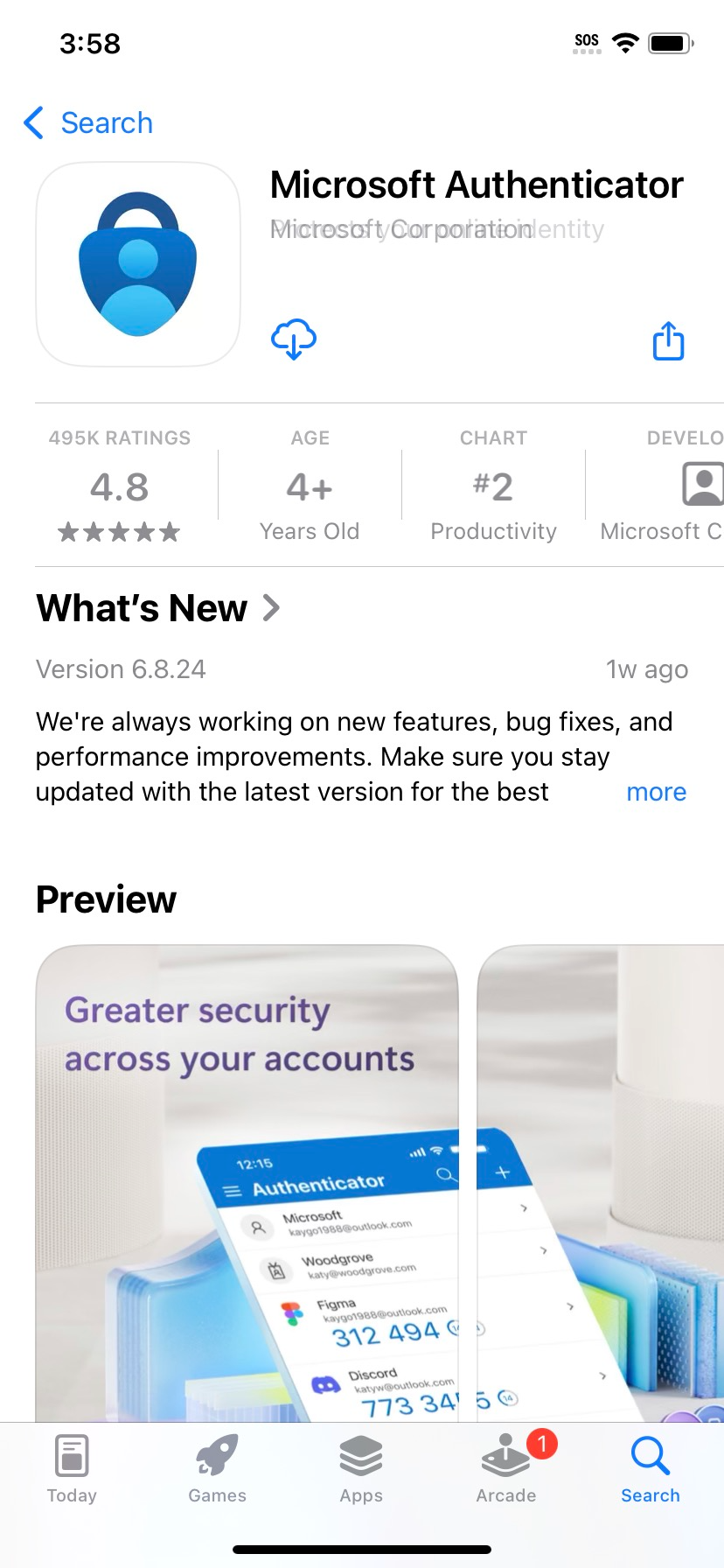
Please visit My Sign-Ins from your computer.
Select ‘Security info’. Click ‘+Add sign-in method’.
Step 2
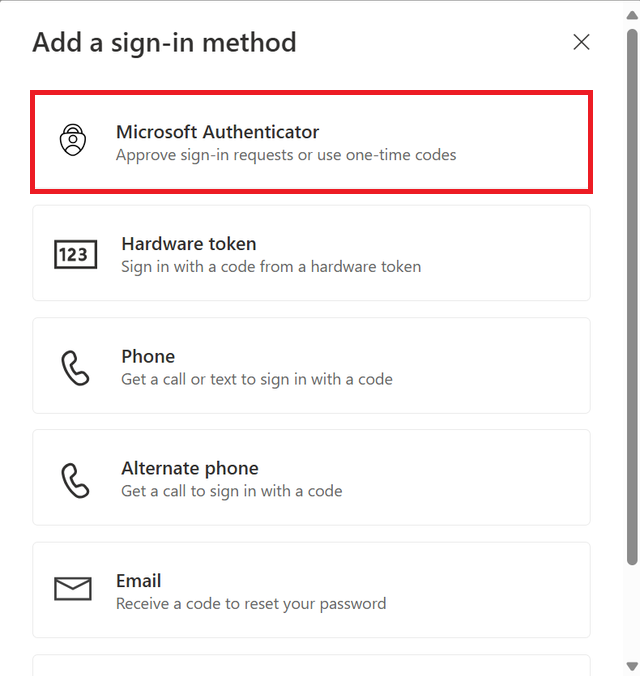
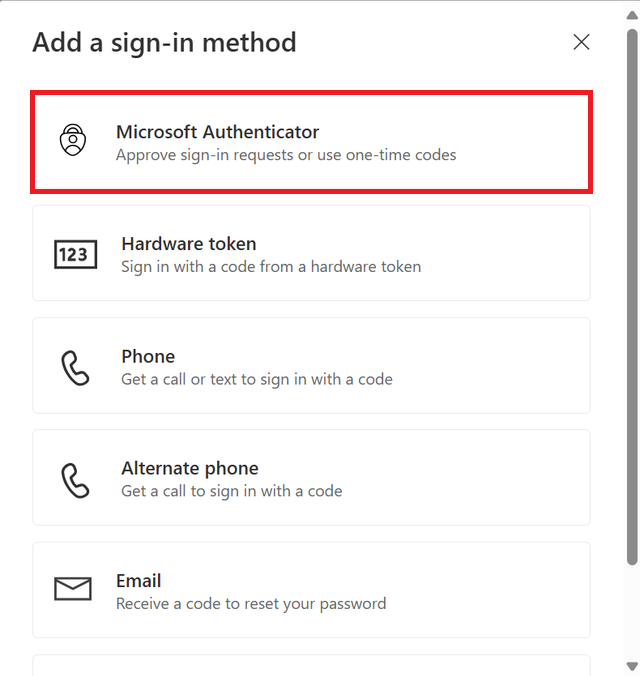
Select ‘Microsoft Authenticator’.
Step 3
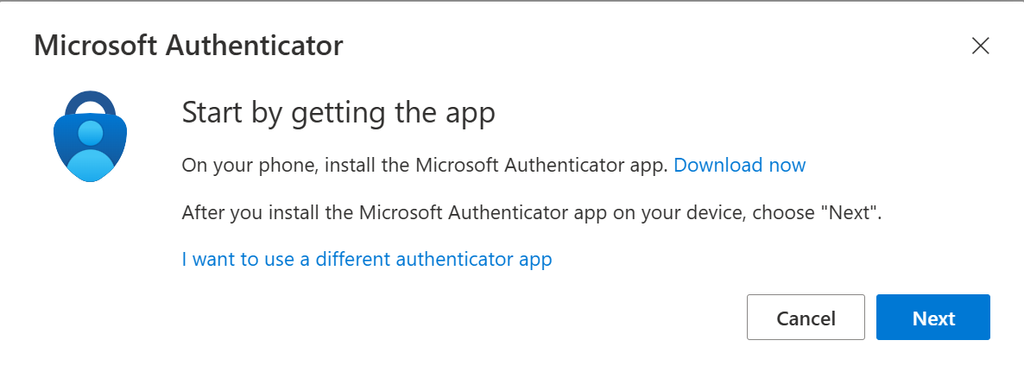
Click 'Next' on the screen shown below.
DO NOT download the Microsoft Authenticator app at this step to avoid confusion.
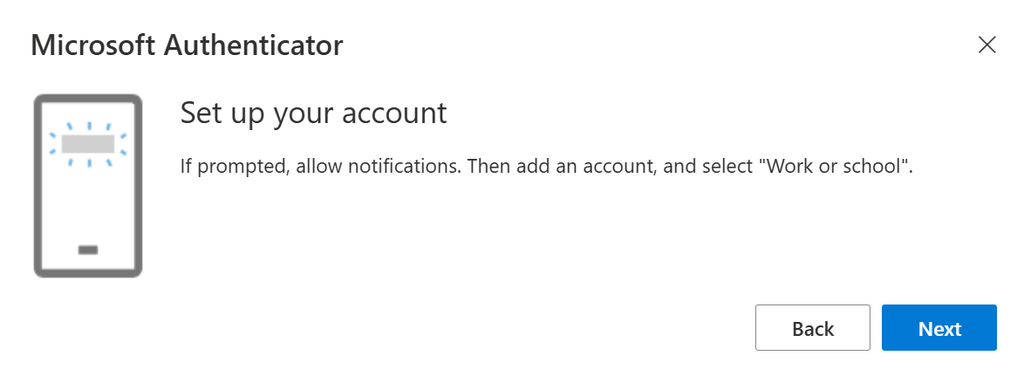
Step 4
Click 'Next' on the screen shown below.
Step 5
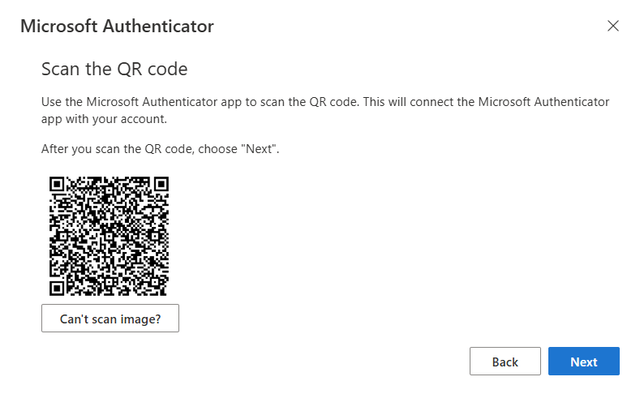
You will be presented with a QR code. Do not click on anything yet on this screen.

Step 6
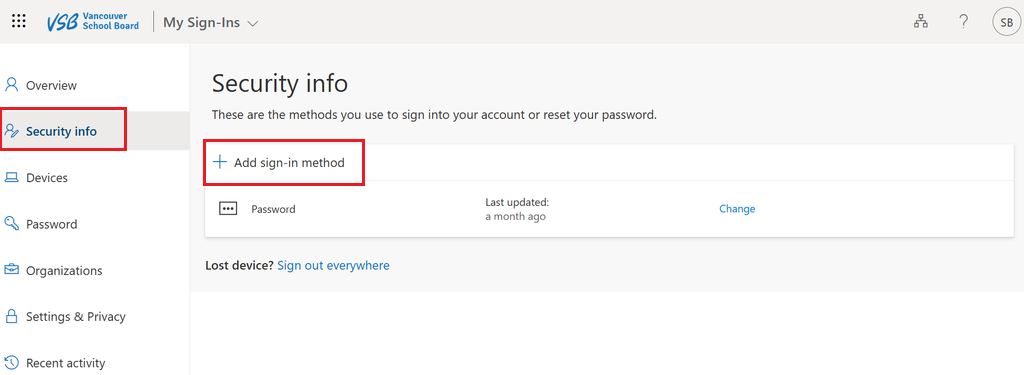
Download and install the Microsoft Authenticator App from the Apple Store.
Step 7
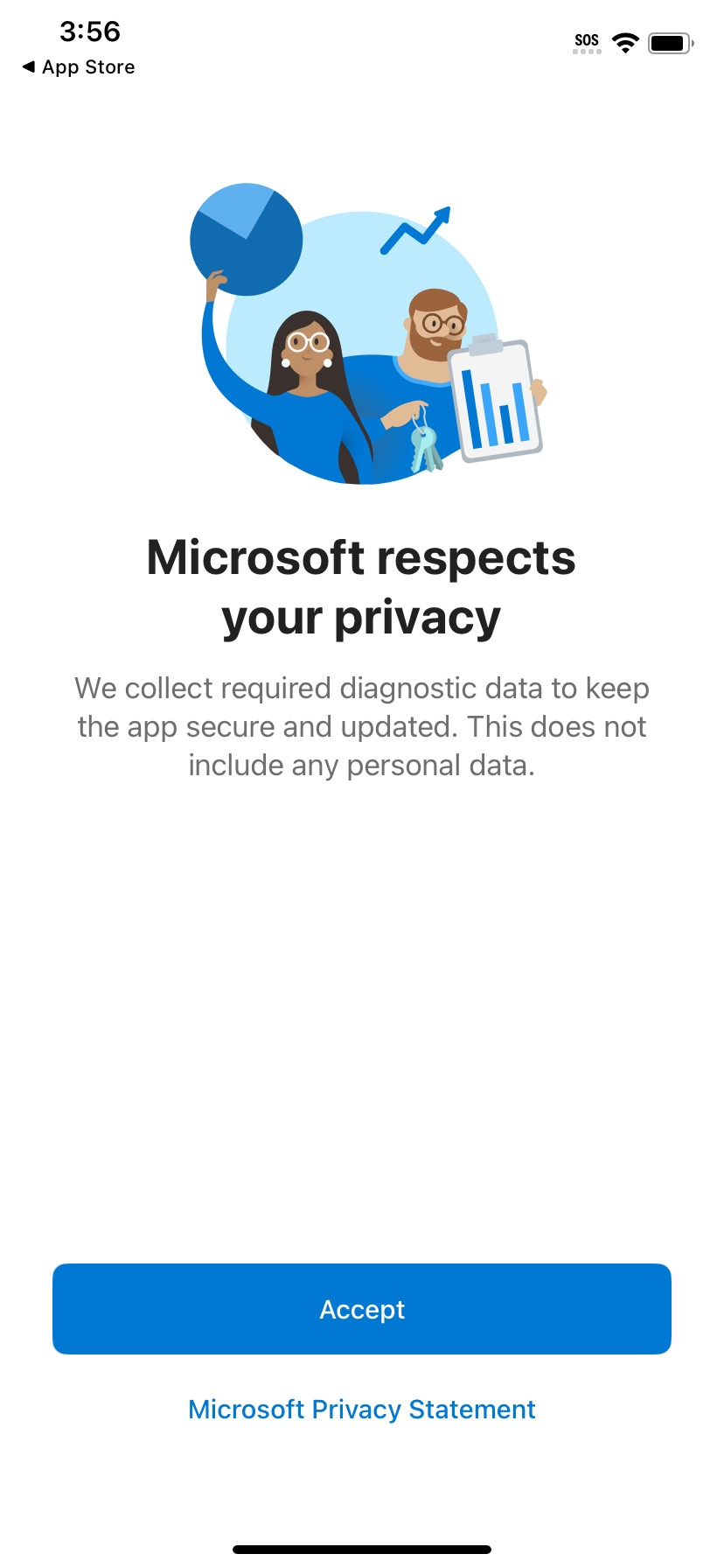
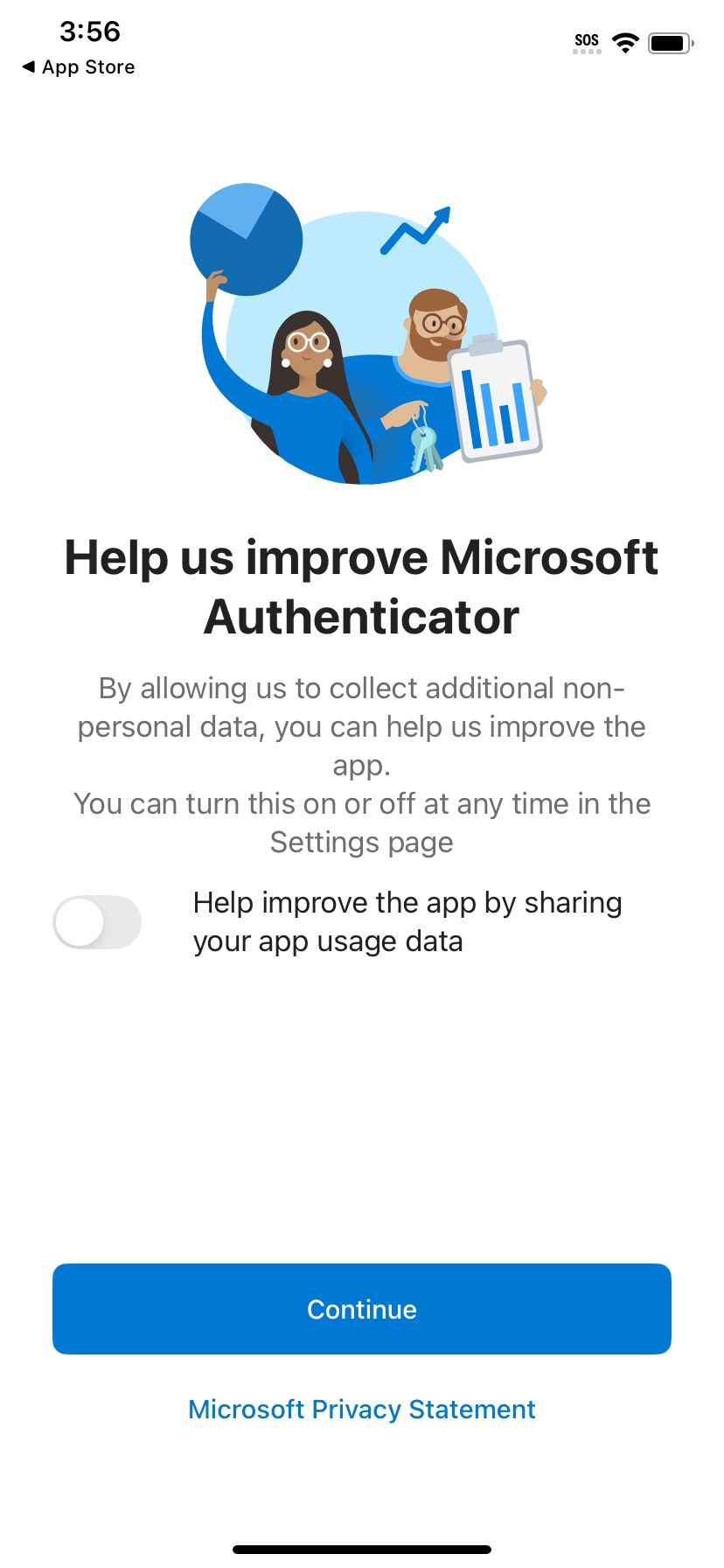
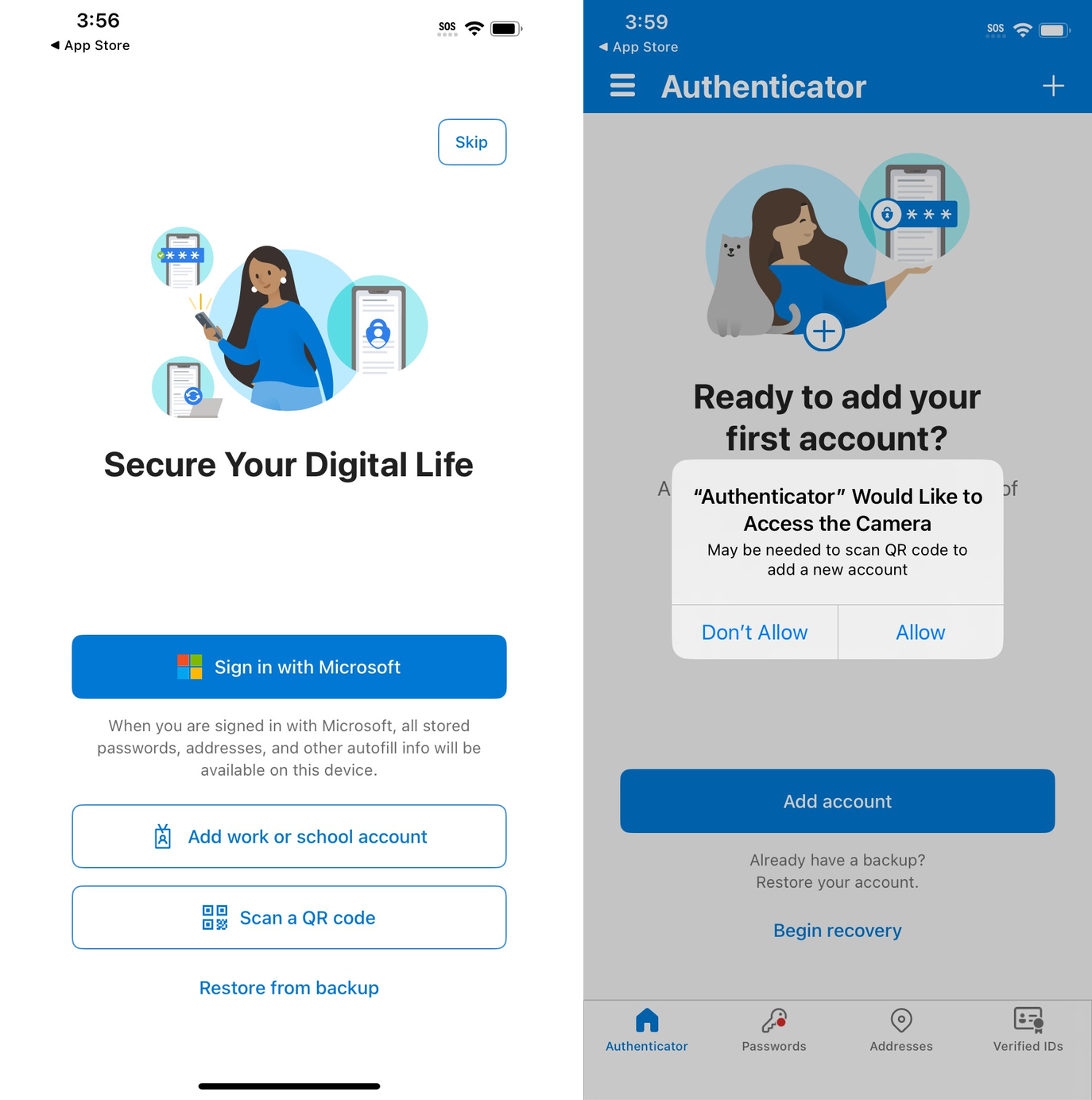
Click through the following screens on your Microsoft Authenticator app.
- Select “Accept”
- Select ‘Continue’. You do not have to click the toggle.
Step 8
Proceed with caution and DO NOT select ‘Add work or school account’ as doing so will cause errors in the setup process.
- Stop at the screen on your mobile device that says, ‘Scan a QR code’.
- Click ‘ALLOW’ to allow the app to use your camera.
Step 9
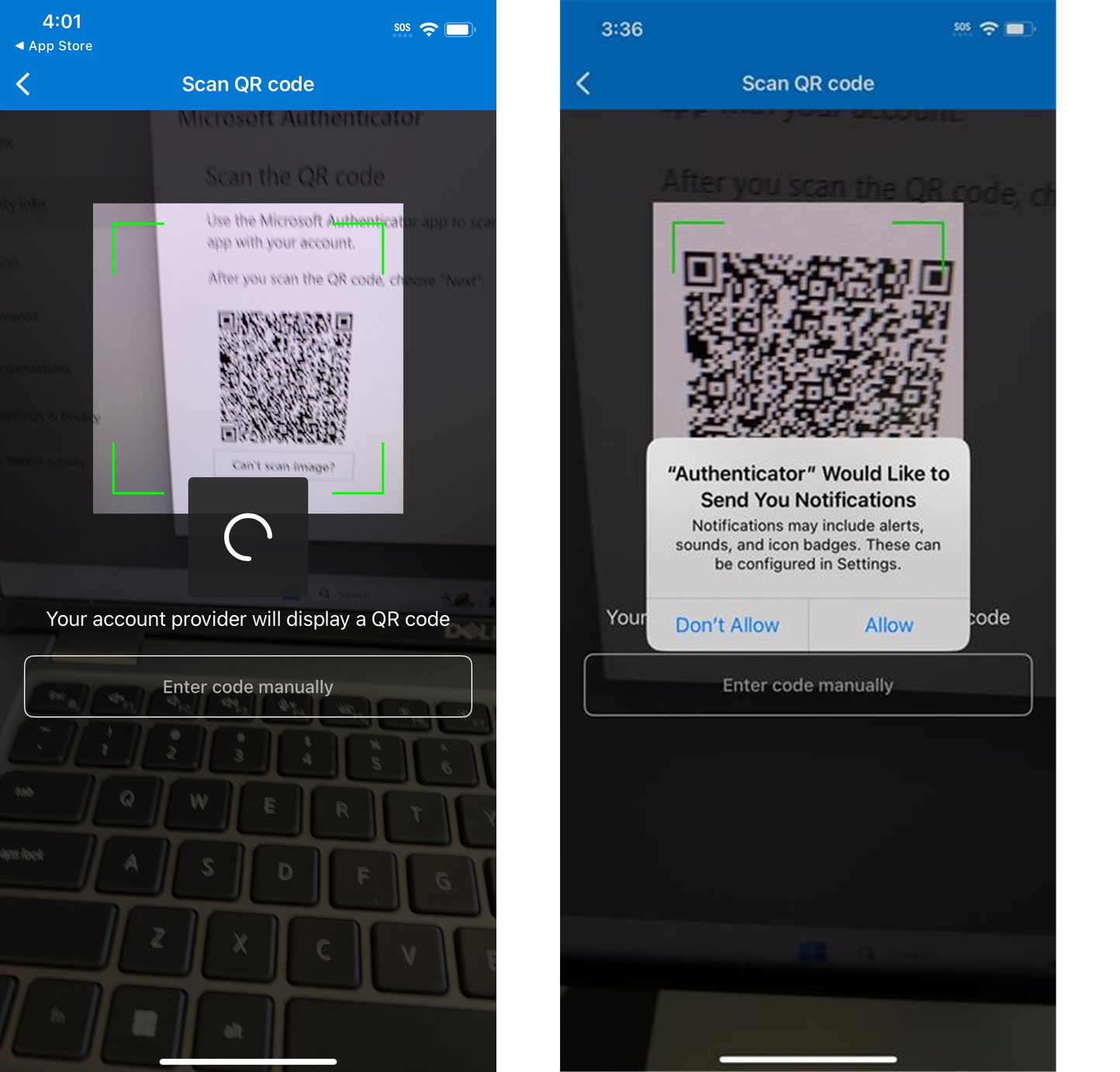
Using your mobile device, scan the QR code being presented on the web page on your computer.
Click 'Allow' for Microsoft Authenticator to send notifications.
Step 10
Click ‘Next.’ on your computer after scanning the QR code.
Step 11
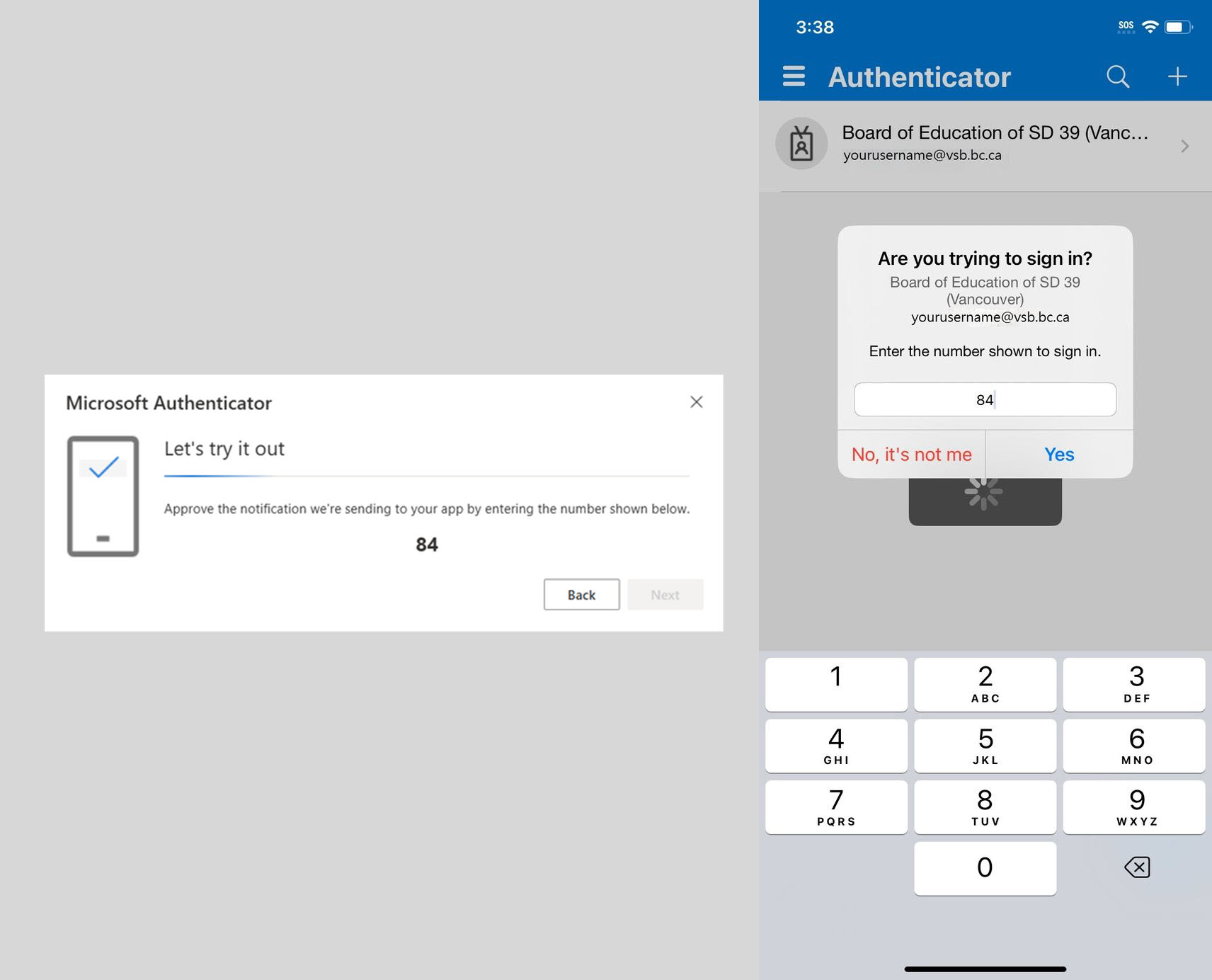
You will be presented with a 2 digit code on your computer. Enter the code on your mobile device. Select ‘Yes’.
Step 12
Success! You will see a message saying ‘Authenticator Added’ on your computer. Click ‘Done’.
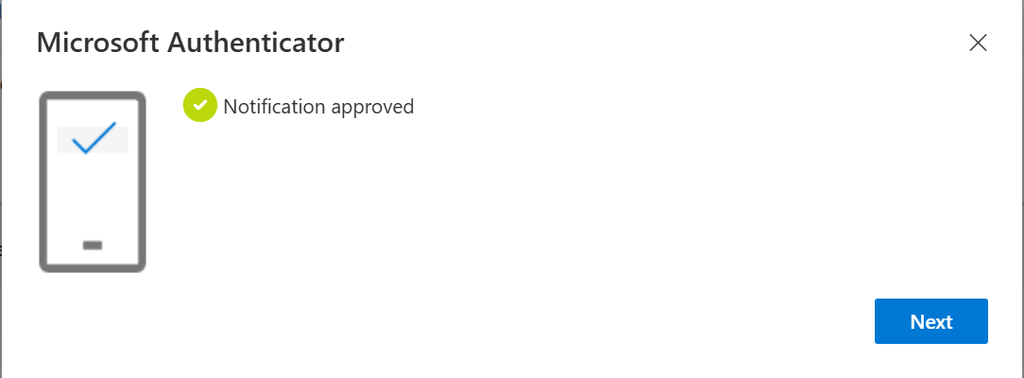
Step 13
On your mobile device, confirm that your work account is set up.
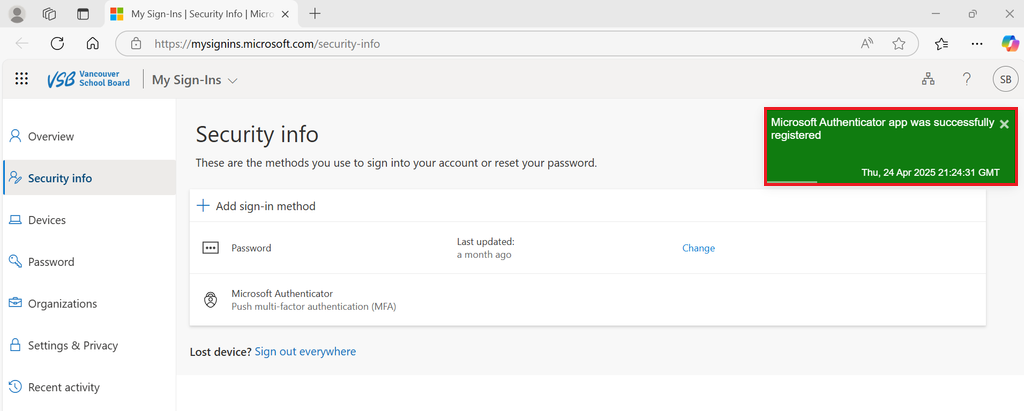
Step 14
Final step. On the My Sign-Ins page, please verify that the Microsoft Authenticator app is set as your default sign in method.
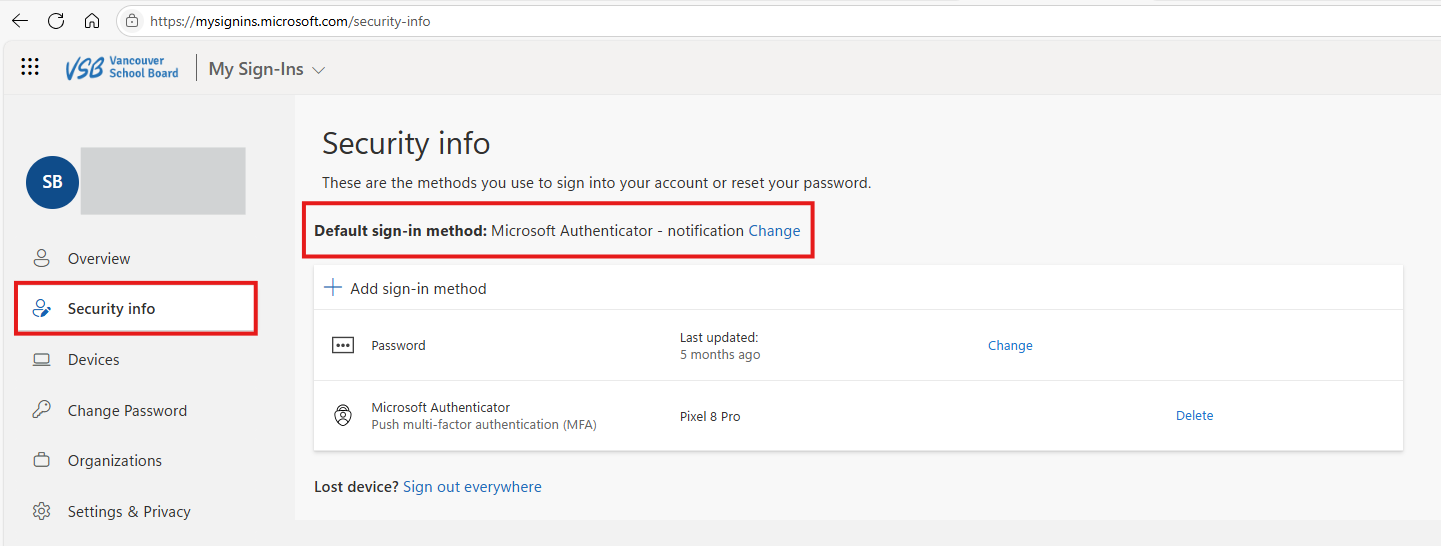
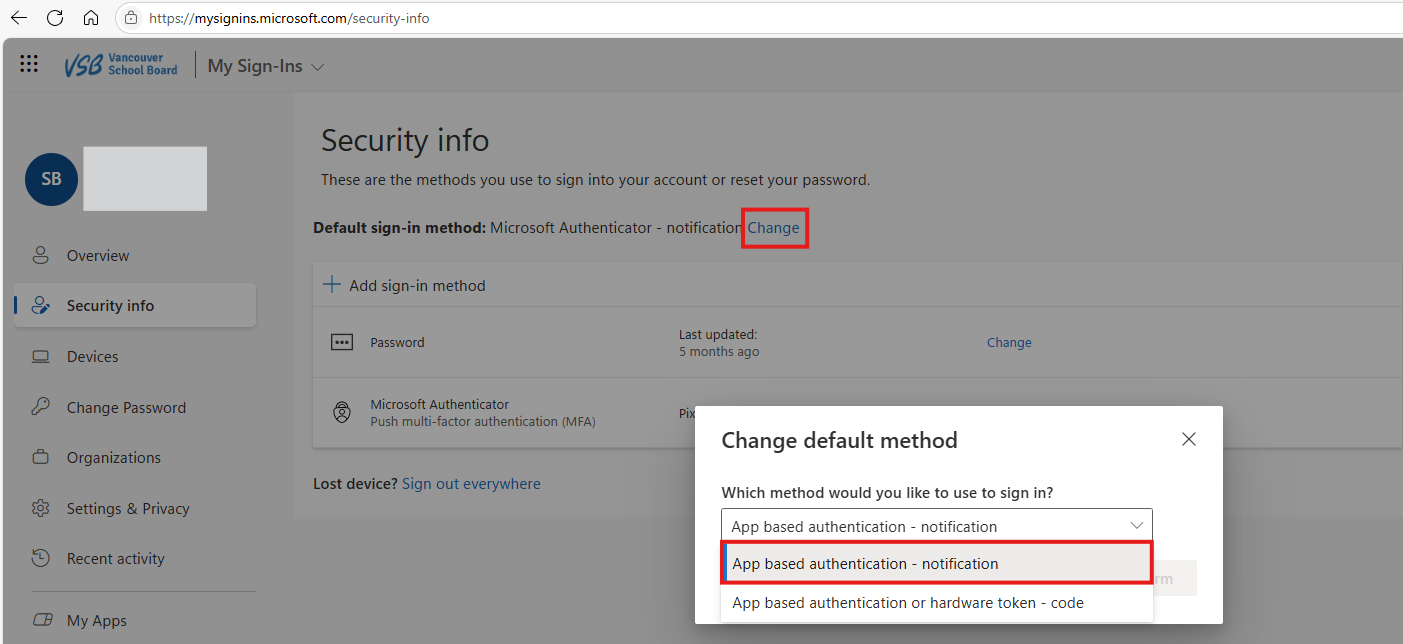
If it's not your default sign-in method, click 'Change' and choose 'App based authentication – notification' from the dropdown.
NOTE: On your first day using the new system, you'll see quite a few pop-ups as everything syncs up. Once that's done, you'll only get pop-ups now and then to authenticate.
If you run into any issues during the authentication process, just reach out to the IT Support Desk.
Need help? We are here to support you
For any questions related to multi-factor authentication, please call the VSB Service Desk at +1-604-713-4444 or email at servicedesk@vsb.bc.ca